how to get downloader on firestick
Mastering the Downloader App on Amazon Firestick
Detailed Walkthrough: Getting Downloader in Under 2 Minutes
Unlocking Hidden Developer Settings in Fire OS
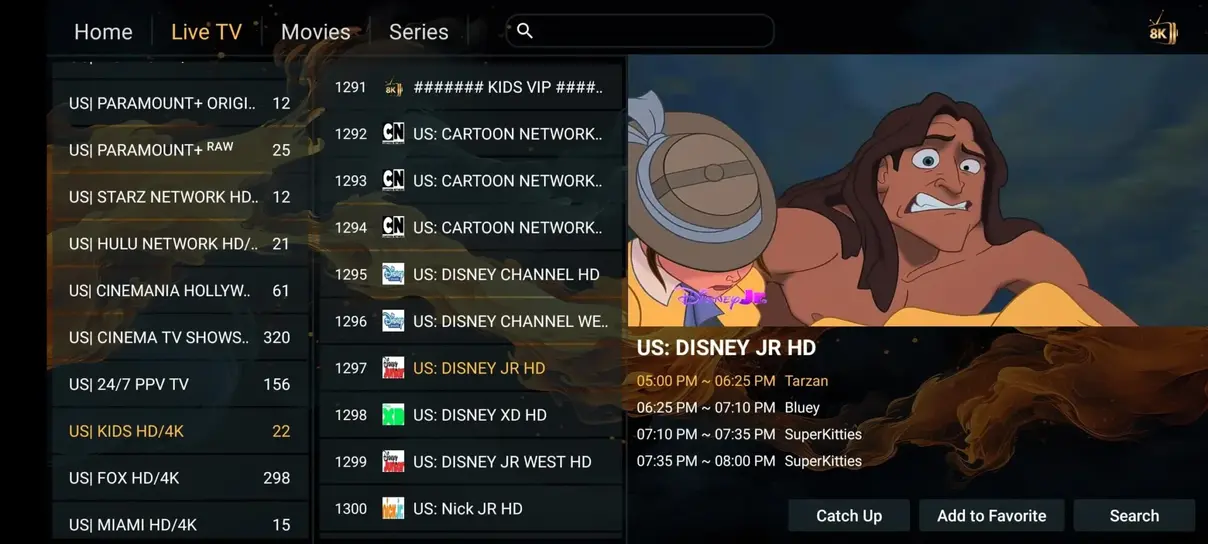
Installing IPTV Smarters Pro Using Downloader Short Codes
Troubleshooting Downloader Installation Issues
Occasionally, Firestick owners encounter issues when attempting to download or run Downloader. Here are the proven fixes for the most common errors:
- Downloader Search Shows 'Unavailable' or 'App Not Found': This occurs if your Amazon account country is set to a region where Downloader is restricted. Go to Amazon.com → Manage Your Content and Devices → Preferences → Country/Region Settings, and set your address to Germany, the UK, or the USA.
- Error 'Downloader Was Unable to Access Storage': You accidentally clicked 'Deny' during initial permission setup. Go to Firestick Settings → Applications → Manage Installed Applications → Downloader → Permissions, and set Storage to 'Allow'.
- Browser Tab Not Working or Missing: A recent update separated the browser plugin. Simply enter `browser.aftvnews.com` in the URL field to install the browser extension.
Connecting to n1 iptv Once Downloader is Installed
Once Downloader is operational and permissions are granted, installing our recommended player apps (TiviMate or IPTV Smarters Pro) takes under 60 seconds. Input the download code, launch the player, and enter your credentials to enjoy over 35.000+ live channels in full 4K UHD.
Tips for Organizing Your Sideloaded Apps on Fire TV
After using Downloader to install your preferred IPTV apps, you will notice that newly sideloaded apps often appear at the very end of your app list. For convenient daily access, move your IPTV player to the front of your Fire TV navigation bar:
- Hold down the Home button on your Fire TV remote until the quick menu appears, then select 'Apps'.
- Scroll to your newly installed IPTV player (e.g. TiviMate or IPTV Smarters Pro).
- Press the Options button (the button with three horizontal lines) on your remote.
- Select 'Move to Front'.
Now, whenever you power on your television, your IPTV application is accessible right from your home screen with a single press of your remote.
Essential Post-Installation Security and Maintenance for Downloader
Installing Downloader provides your Fire TV Stick with powerful direct-sideloading capabilities. To preserve device stability and security over years of uninterrupted streaming, adopt these recommended operating practices:
- Verify Numeric Codes Before Confirming: Downloader shortcodes are five-digit redirection links maintained by AFTVnews. Ensure you only input verified numeric codes provided by reputable developers or our official setup guides to avoid malicious clones.
- Maintain Minimum Free Storage: Amazon Fire TV Sticks require at least 1.5 GB of free flash memory to execute video buffering and OS background operations smoothly. Check your remaining capacity under Settings → My Fire TV → About → Storage.
- Keep Downloader Updated: The official Amazon Appstore periodically updates Downloader with security fixes and enhanced web engine rendering. Leave automatic app updates enabled in Fire TV settings.
With Downloader installed and properly configured, equipping your Fire TV Stick with n1 iptv takes less than two minutes, instantly unlocking 35.000+ live channels and 142.000+ on-demand movies.
Step-by-Step Security Best Practices for Sideloaded Streaming Devices
Unlocking developer permissions and installing third-party utilities gives your Firestick immense streaming freedom. To maintain a secure, protected smart home environment, adhere to these fundamental safety precautions:
- Disable Unused App Permissions: In Settings → Applications → Manage Installed Applications, review individual app permissions and revoke unnecessary access to location or contacts.
- Keep Sideload Sources Trusted: Only download streaming players from recognized industry sources or through verified numeric shortcodes provided by your IPTV provider.
- Turn Off In-App Analytics: Inside Fire TV settings under Preferences → Privacy Settings, turn off 'Device Usage Data' and 'Collect App Usage Data' to enhance device responsiveness.
Following these simple guidelines keeps your streaming hardware nimble and clean, ensuring that n1 iptv delivers smooth, crystal-clear entertainment across all your favorite television channels.
Network Optimization Tips for Rapid APK Downloads on Firestick
If Downloader takes an unusually long time to pull streaming application APKs, your Fire TV Stick may be contending with Wi-Fi interference behind your television. Because modern flat-screen televisions contain metallic backplates that shield and reflect radio waves, streaming sticks plugged directly into rear HDMI ports often suffer degraded wireless signal strength.
Using the flexible HDMI extender cable included in your Amazon Firestick packaging positions the device away from television chassis shielding, immediately boosting Wi-Fi throughput by up to 40%. Additionally, connecting your device to the 5 GHz Wi-Fi band instead of congested 2.4 GHz frequencies guarantees lightning-fast APK transfers and smooth 4K Ultra-HD streaming with n1 iptv.
Summary of Firestick Sideloading
Mastering the Downloader application unlocks the full potential of your Amazon Fire TV hardware. By pairing proper installation procedures with a premium subscription to n1 iptv, you secure access to over 35.000+ live television channels, 142.000+ movies on demand, and seamless 99.9% anti-freeze server uptime all year long.
Ready to Experience Ultra-HD 4K Streaming?
Join thousands of satisfied European households streaming with n1 iptv. Enjoy 35.000+ live channels, 142.000+ movies on demand, and 99.9% uptime with our 7-day money-back guarantee.